Published February 14, 2025 • SimplTests Blog • Google Forms • Quiz Export
Create a Google Form Quiz Automatically—No Copy-Paste Required
Create your test in SimplTests and export it straight to Google Forms. SimplTests creates the form in your Google account—questions, options, and all. No file download, no copy-paste.
Why Use Google Forms for Quizzes?
Google Forms is free, familiar to most students, and automatically grades multiple choice and true/false. Exporting from SimplTests means no copy-paste—your questions, options, and correct answers flow directly into a form. Share the link and students can take the quiz on any device. Perfect for homework, quick checks, or formative assessments.
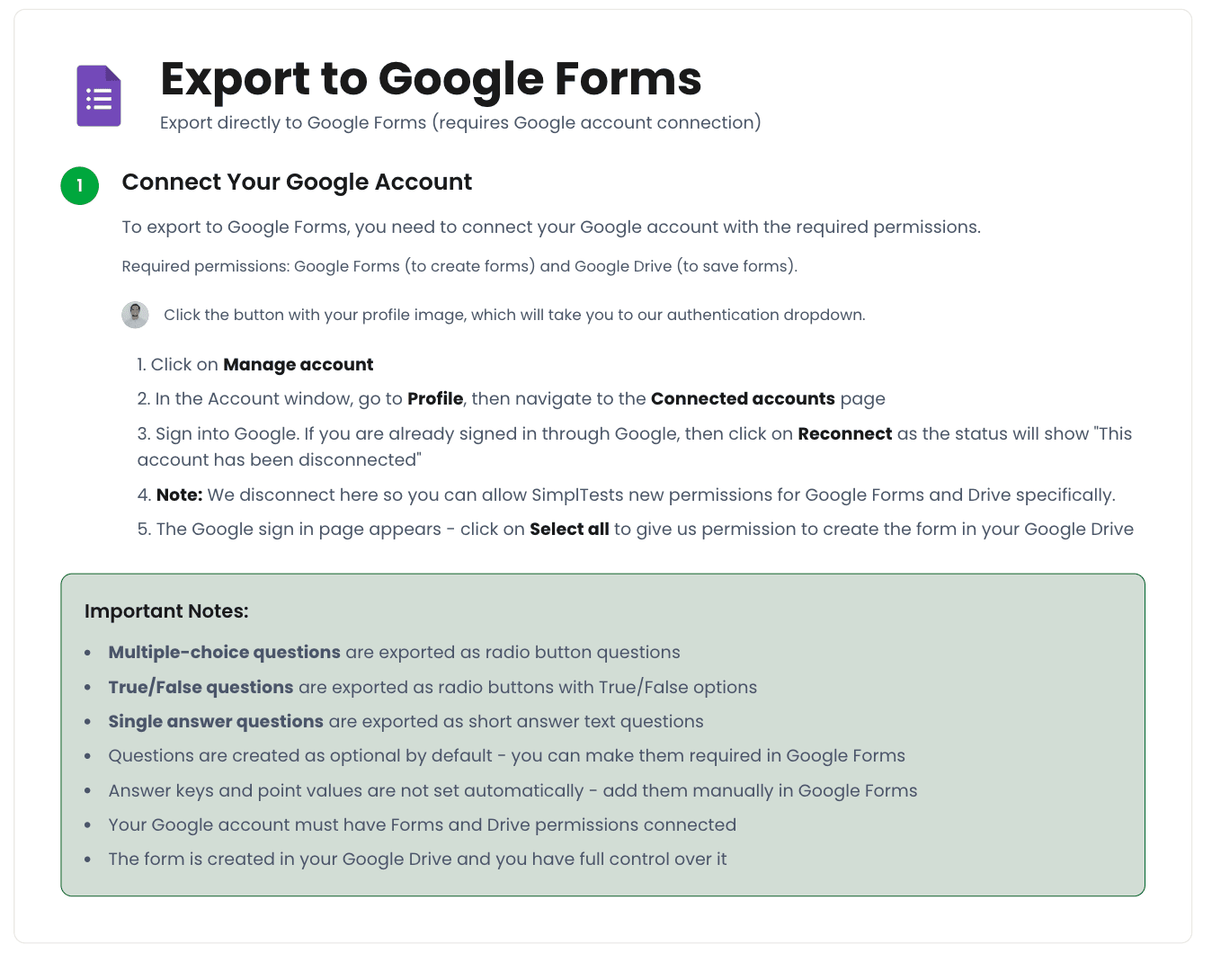
1. Connect Your Google Account
You need a Google account connected to SimplTests with Forms and Drive permissions. If you haven't connected yet, you'll be prompted when you try to export. Make sure to grant access to Google Forms and Google Drive.
2. Create and Save Your Test
Go to Create Test, add your title, and build your quiz. Use the AI generator or add questions manually. Multiple choice, true/false, and short answer are all supported. Save your test to Saved Tests.
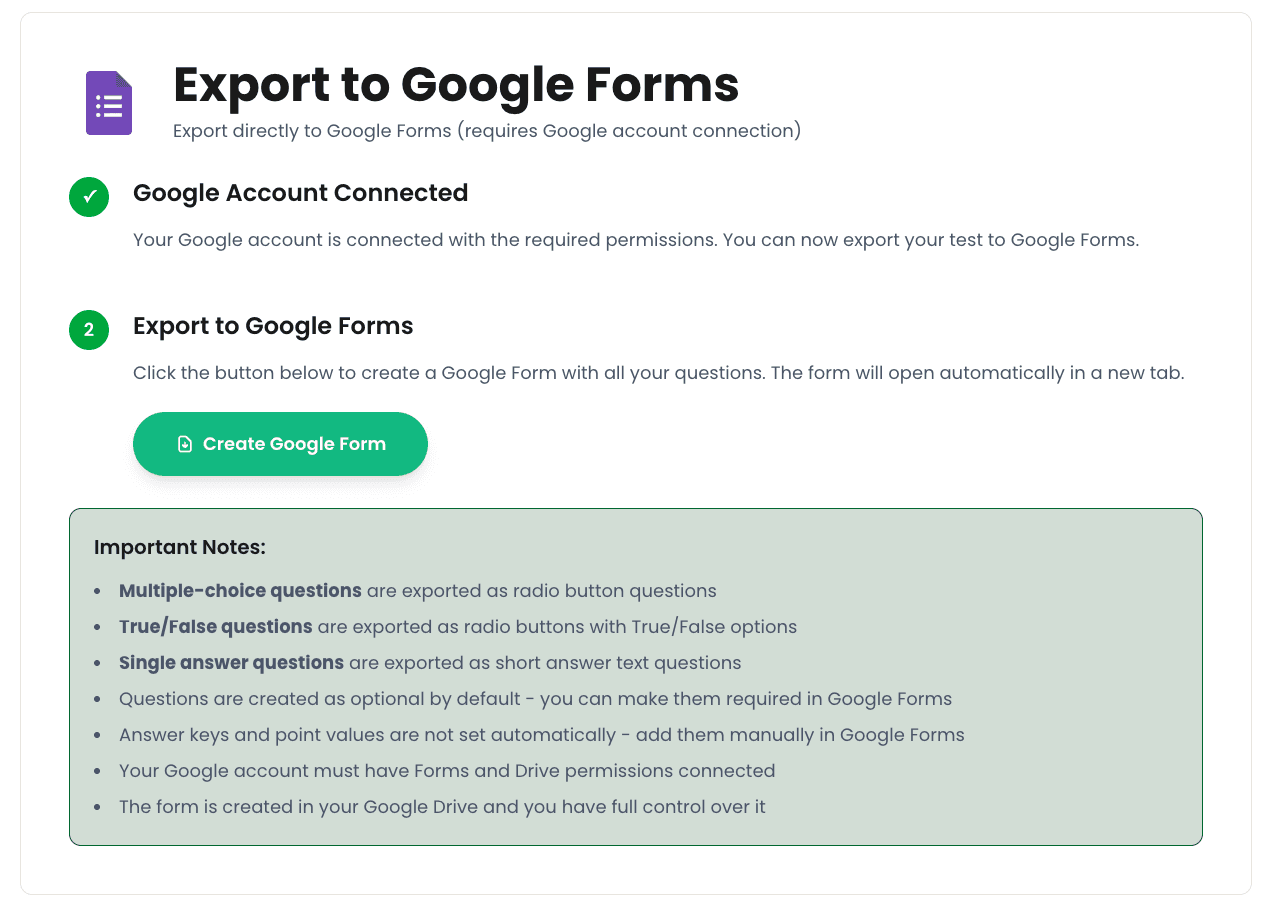
3. Export to Google Forms
Open your saved test, click Export, and choose Google Forms. SimplTests will create a new Google Form in your account with all your questions. You'll get a link to the form—open it, edit if needed, and share with your students.
- Click Export and select Google Forms.
- SimplTests creates the form in your Google account.
- You receive a link to the new form.
- Open, edit, and share—no file to upload.
Tips and Best Practices
- Enable "Collect email addresses" in Form settings if you need to track who submitted.
- Use the Response validation feature in Forms to require answers before submission.
- For presentations, pair with Google Slides export—Forms for graded work, Slides for in-class review.
Frequently Asked Questions
Can I edit the form after export?
Yes. The form is created in your Google account. Open it and add sections, change themes, or adjust settings as needed.
Does Google Forms auto-grade?
Yes. For multiple choice and true/false, Google Forms can automatically grade responses and show correct answers. Short answer requires manual review.
Done
Your quiz is now a Google Form. Use it for homework, quizzes, or surveys. Generate with AI in SimplTests, export to Google Forms, and share the link.
Related Guides
Turn Your Quiz into a Google Slides Presentation in Minutes
Turn your SimplTests quiz into a Google Slides presentation—one question per slide.
Create Classroom Quizzes with AI and Export to Canvas in Minutes
Learn how to create classroom quizzes quickly, use AI to generate questions, and export to Canvas in minutes.
From Quiz to Kahoot: Export XLSX and Run Live Classroom Games
Export your multiple choice quiz to Kahoot as XLSX and run a live classroom game.