Published February 12, 2025 • SimplTests Blog • Blackboard • LMS Export
Import Quiz Questions into Blackboard Learn in 3 Steps
Create your test in SimplTests, export it as a tab-delimited TXT file, and upload it into Blackboard Learn. Multiple choice, true/false, and short answer—all supported.
Why Import Questions into Blackboard Learn?
Blackboard Learn is used by many universities and schools for course management. Manually entering questions into Blackboard can be tedious. SimplTests exports a tab-delimited TXT file that Blackboard accepts natively—upload once and your questions appear in Tests, Surveys, and Pools. Use AI to generate questions in SimplTests, then import them into your Blackboard course in minutes.
1. Create and Save Your Test
Go to Create Test, add your title, and build your quiz. Use the AI generator or add questions manually. When you're done, save your test—it will appear in Saved Tests.
2. Export to Blackboard TXT
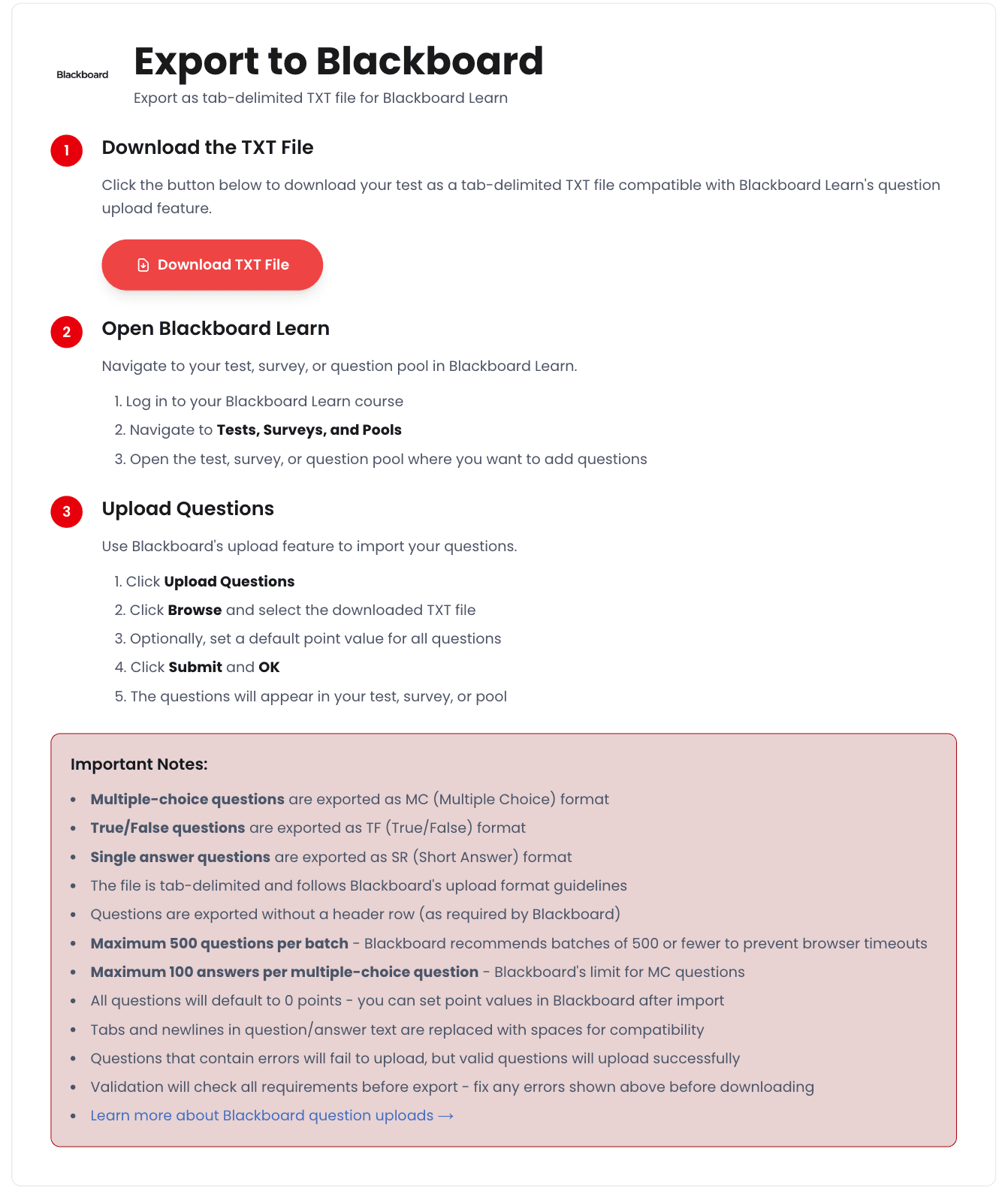
Open your saved test, click Export, and choose Blackboard. SimplTests will generate a tab-delimited TXT file that follows Blackboard's upload format. Download it to your computer.
A Quick Note on the Format
Blackboard uses a tab-delimited format: each line is a question, with fields separated by tabs. Multiple choice (MC), true/false (TF), and short answer (SR) are all supported. SimplTests outputs this automatically—no editing required.
3. Upload into Blackboard Learn
In Blackboard Learn, go to Tests, Surveys, and Pools and open the test, survey, or question pool where you want to add questions. Click Upload Questions, browse to select your TXT file, set a default point value if needed, and submit. Your questions will appear in Blackboard.
- Log in to your Blackboard Learn course.
- Navigate to Tests, Surveys, and Pools.
- Open the test or pool where you want to add questions.
- Click Upload Questions and select your downloaded TXT file.
- Submit—your questions are now in Blackboard.
Tips and Best Practices
- Import into a question pool first, then add questions to tests—gives you more flexibility.
- Check your institution's Blackboard version; the upload flow may vary slightly.
- For Moodle users, see our Moodle XML guide; for Canvas, try Canvas export.
Frequently Asked Questions
What question types does Blackboard TXT support?
SimplTests exports multiple choice (MC), true/false (TF), and short answer (SR) in Blackboard's tab-delimited format. All are supported by Blackboard Learn.
Can I edit questions after importing?
Yes. Once in Blackboard, questions appear in your pool or test. Edit them directly in Blackboard as you would any other question.
Done
You've gone from creating a test in SimplTests to having it in Blackboard. Use the same workflow for any quiz—generate with AI, export to Blackboard TXT, and upload.
Related Guides
Import Quiz Questions into Moodle with XML: A 3-Step Guide
Create tests with AI, export to Moodle XML, and import them into your Moodle course.
Create Classroom Quizzes with AI and Export to Canvas in Minutes
Learn how to create classroom quizzes quickly, use AI to generate questions, and export to Canvas in minutes.
One Question Bank, 6 Platforms: Export to Canvas, Moodle, Kahoot & More
Build one test manually, then export it to Canvas, Moodle, Blackboard, Kahoot, Google Forms, and more.